OpenCapture
Free, local-first screen capture for Chrome — full-page & area screenshots, desktop capture, video recording, and a fast annotation editor.
Why we built it
OpenCapture exists because I spent years paying a yearly subscription for a Chrome screenshot extension whose best features — full-page capture, video recording, fast annotation — kept getting walled behind upgrade prompts. The pattern was familiar: a useful tool, monetized by gating the parts that made it useful.
So we built our own. OpenCapture has every feature that mattered, free, with no account, no cloud, and no telemetry. It runs entirely on your device. We released it under the IdleHumans brand because the goal isn’t to make money on it — it’s to make it exist.
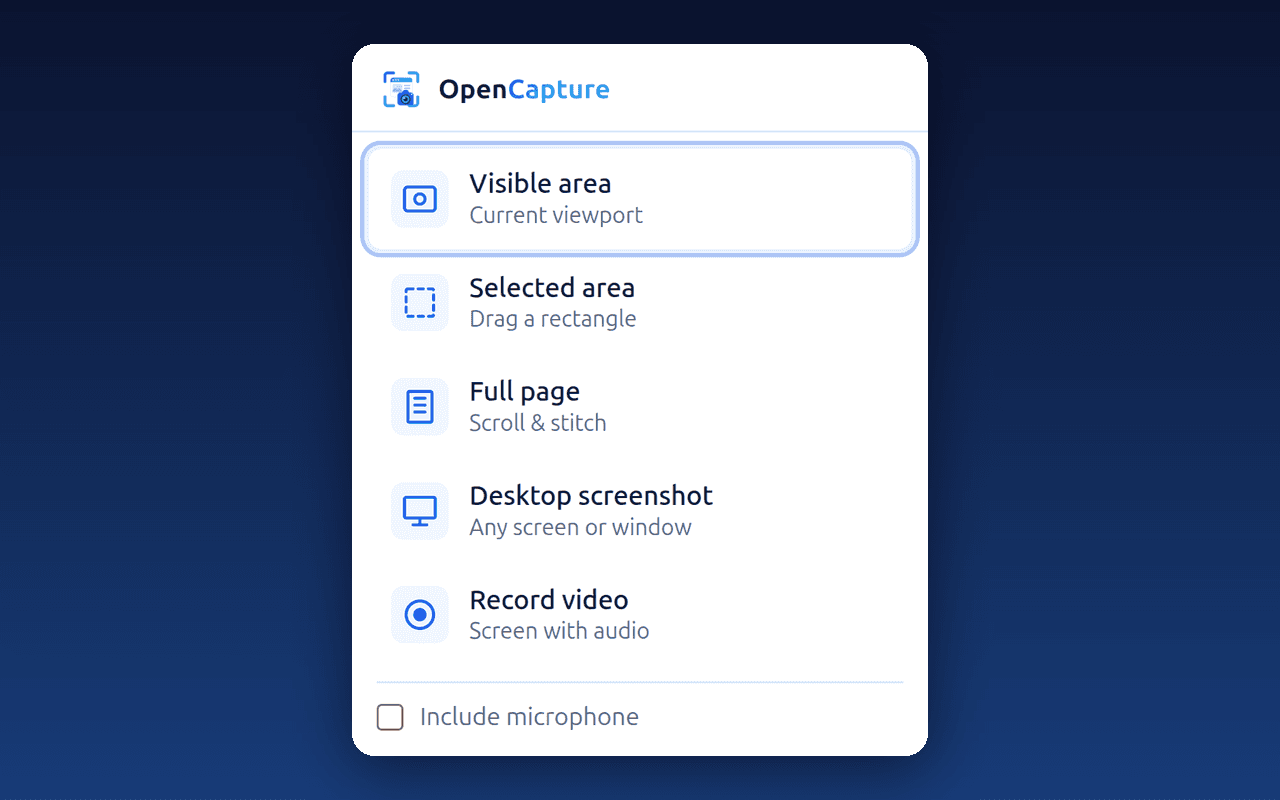
Five ways to capture
One click to grab what you need, the way you need it. Every mode is local and instantaneous.
- Visible area — the current viewport in one click.
- Selected area — drag a rectangle to capture exactly what you want.
- Full page — auto-scroll and stitch a whole page into one image.
- Desktop screenshot — capture any screen, window, or tab via Chrome’s native picker.
- Video recording — record to a local .webm or .mp4, with optional microphone audio.
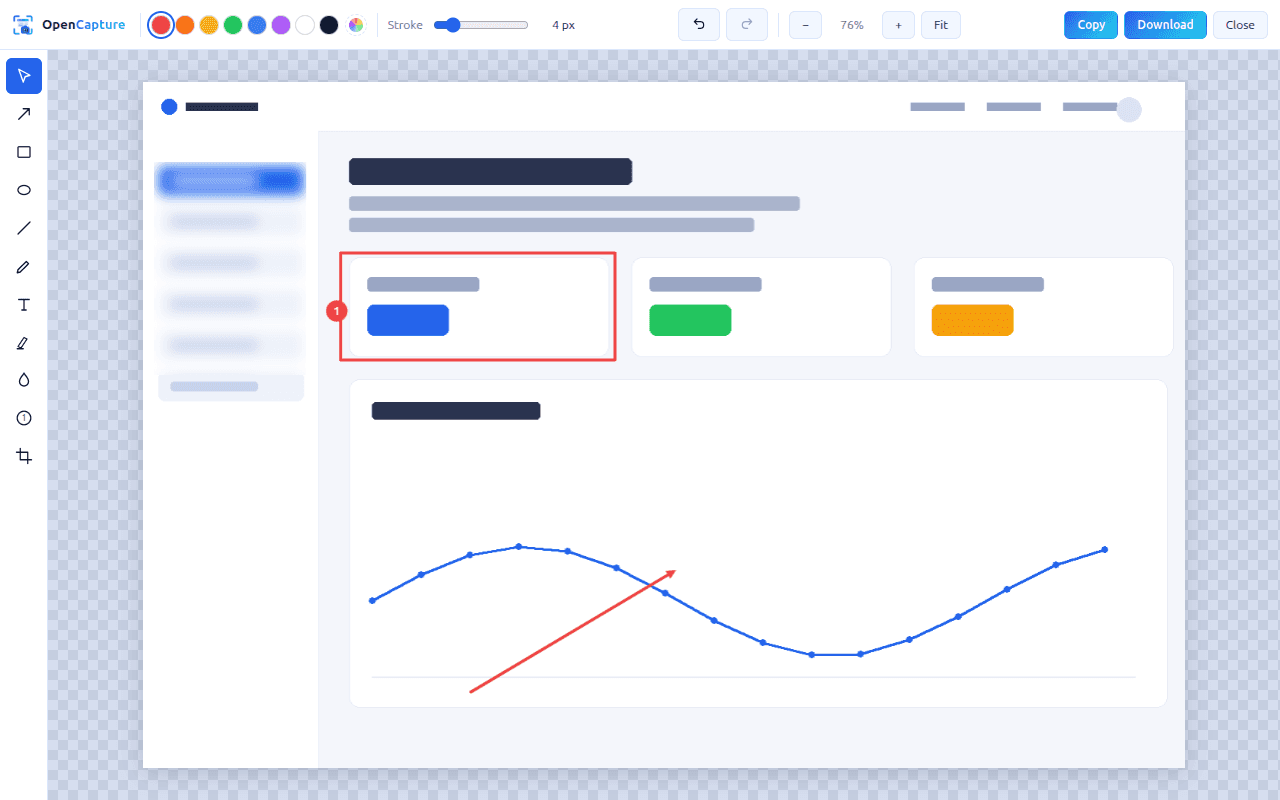
A fast editor that opens after every shot
Mark up what you captured without leaving the page. Arrow, rectangle, ellipse, line, freehand pen, text, highlighter, blur for sensitive info, numbered step markers, and crop. Adjustable colors and strokes, undo/redo, zoom, copy to clipboard, and PNG download — fully keyboard-operable.
Private by design
OpenCapture makes zero network requests. No data is collected, uploaded, or tracked — ever. No "sign in to continue," no upgrade nags, no shareable cloud links by design. Your captures stay on your machine.
Read the full OpenCapture privacy policy for the per-permission breakdown.
Known limitations
- Full-page capture follows the main browser scroll. A few apps that scroll inside their own panel rather than the window (some single-page web apps) may capture only the visible area on a full-page attempt. Visible-area, selected-area, desktop screenshot, and video recording are unaffected.
- Protected pages (chrome://, the Chrome Web Store, and other internal pages) can’t be captured by any extension; the popup tells you when a page can’t be captured.
- Saved files go to your normal Downloads folder. There are no cloud links — by design.
Coming soon to the Chrome Web Store
The extension is in review. Until it’s live, you can read the privacy policy or get in touch if you have questions, bugs, or feature requests.